Getting Started
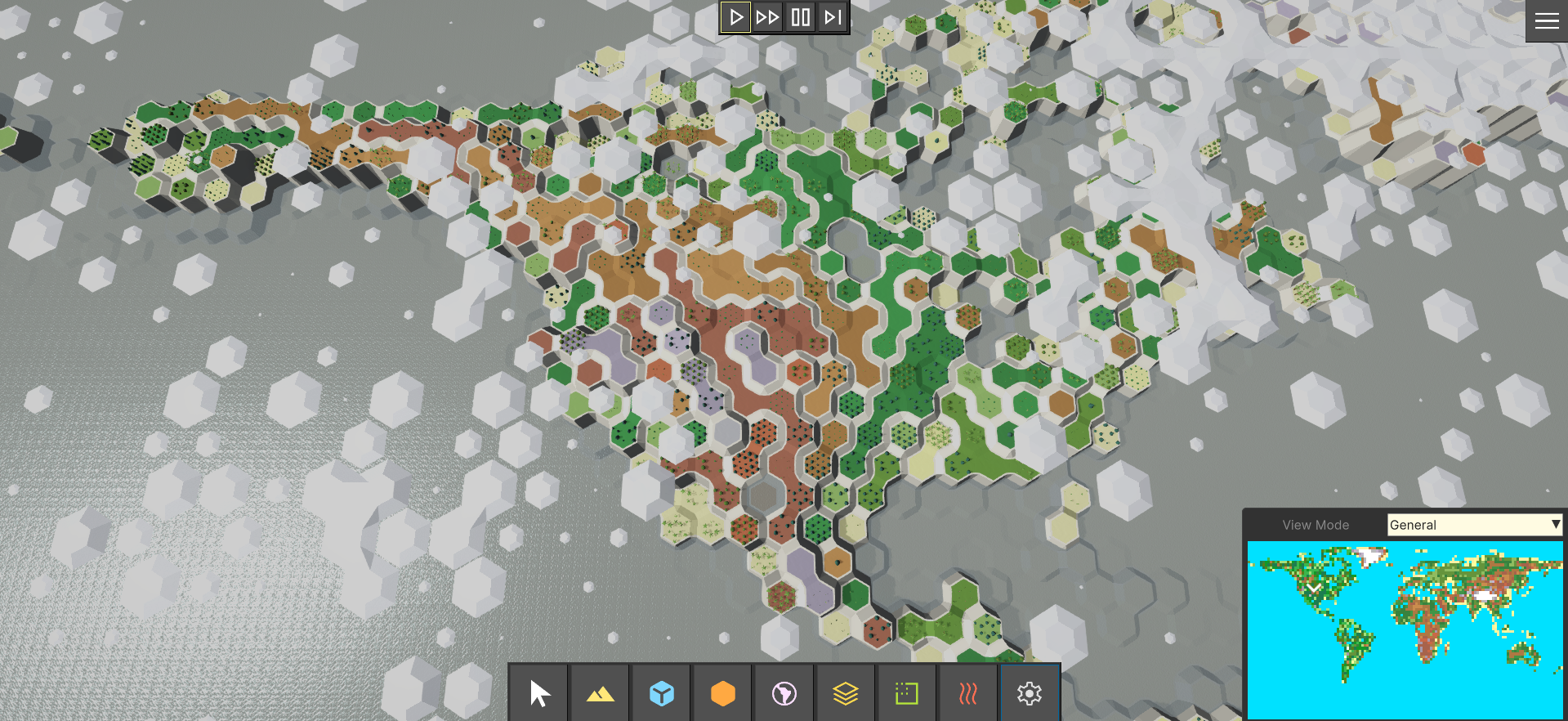
Demo Scenes
Install package from asset store.
If you use a Universal Render Pipeline, you are good to go. But if you use a High Definition Render Pipeline, extract HDRP assets from included DemoAssets_HDRP.unitypackage (
Assets/freewebtime/Samples/HexTerrains_Demo/DemoAssets_HDRP.unitypackage). Double click on the DemoAssets_HDRP.unitypackage, in the popup ensure that all assets are selected and press "Import" button. This will overwrite URP assets with HDRP ones in your demo scenes.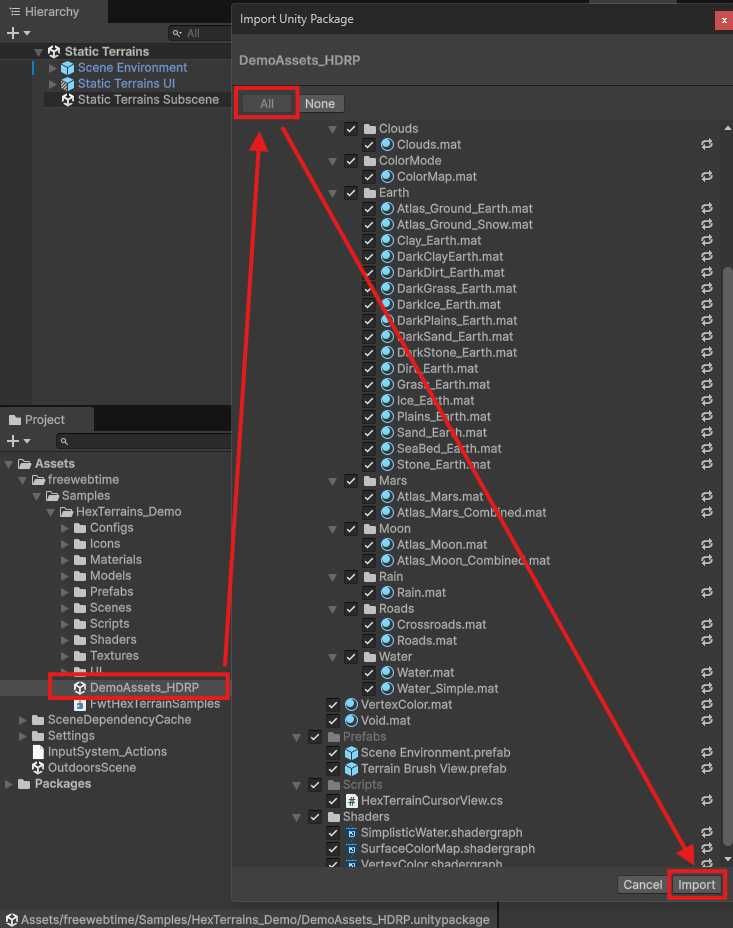
Navigate to folder
Assets/freewebtime/Samples/HexTerrains_Demo/ScenesOpen
Static Terrainsscene orDynamic Terrainsscene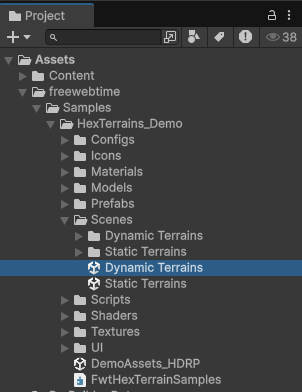
Press "Play" button
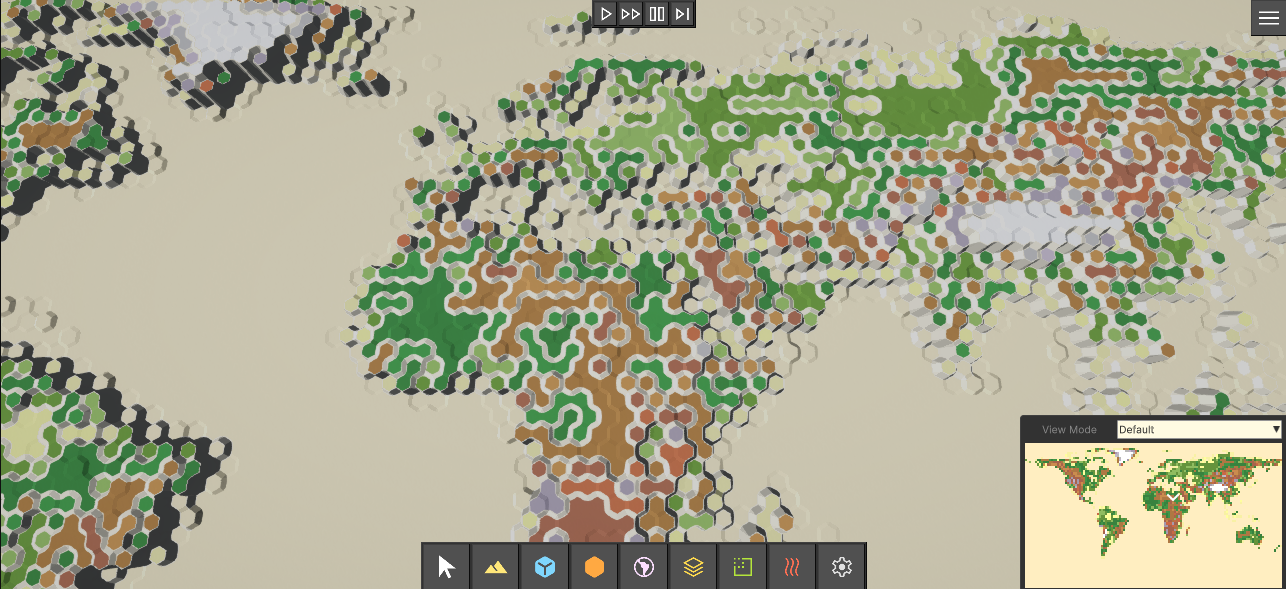
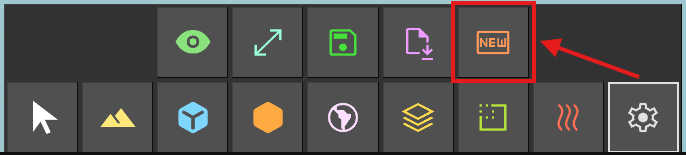
To create another terrain, select "System" User Tool category, then "Create New"
In openned window select a terrain prefab and put the settings you want.
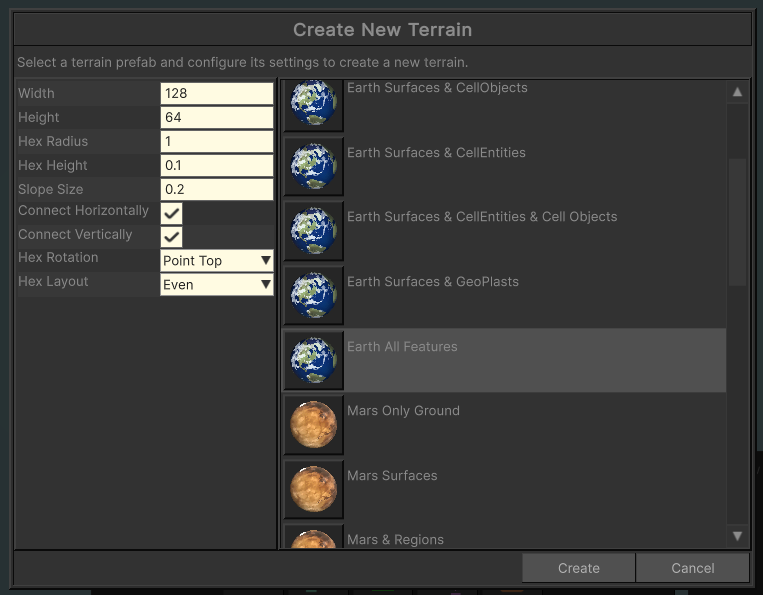
Press "Create" button
Enjoy!
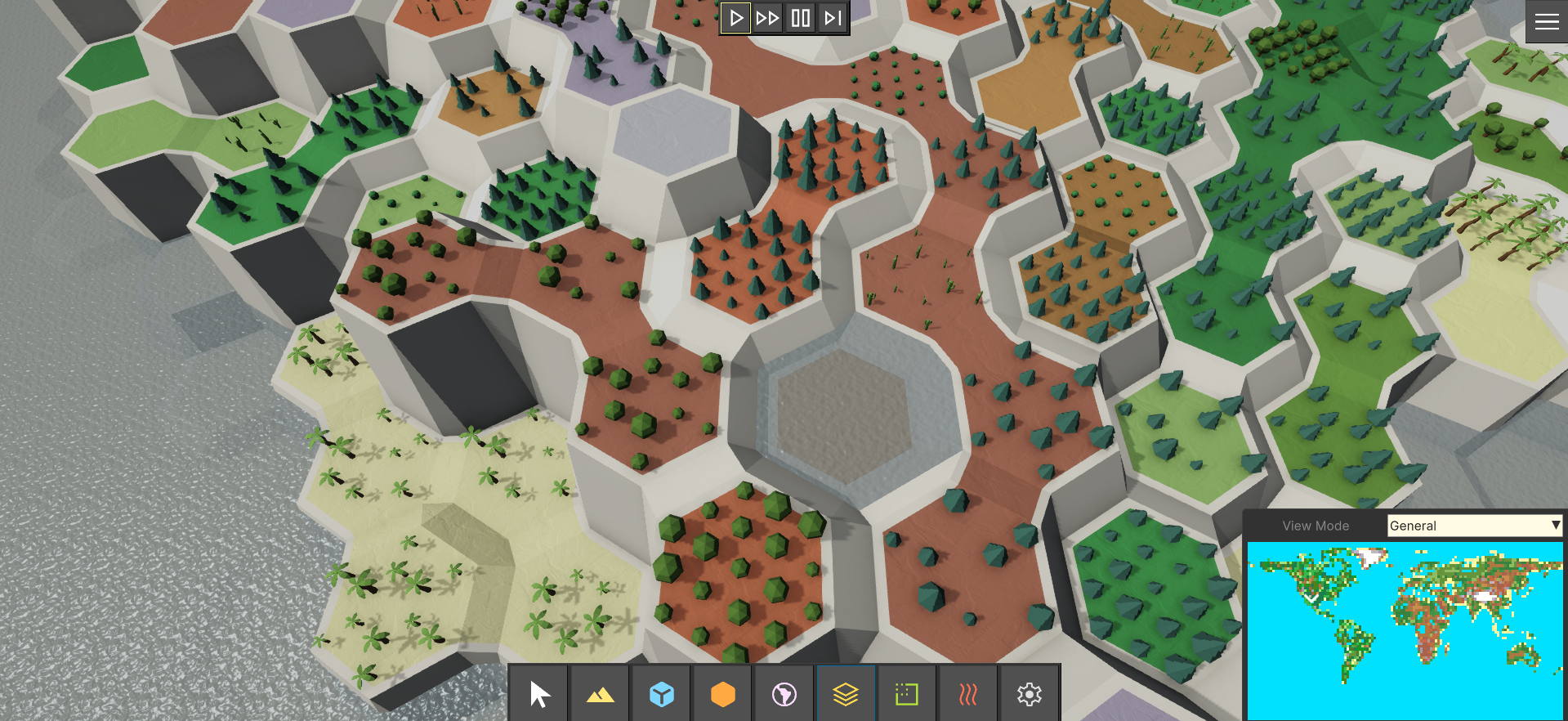
In-game terrain editor
In-game editor is a State Machine called (see class
UserToolStateMachine). State Machine has a set of User Tool States like Deform Terrain, Paint Biomes, Paint Cell Items, Paint Countries, etc. Every UserToolState communicates with a Terrain using a proxy implementation of theIHexTerrainAPI(seeHexTerrainAPIclass).All User Tools are split between a set of categories:
Surfaces Tools(Deform, Level, Noise, Smooth, Apply Heightmap, Paint Biome, Auto-paint Biome, Stamp Height, Stamp Biome, Set Layer Visibility)

Cell Objects Tools(Paint Cell Object, Stamp Cell Object, Cell Object Index, Cell Object State, Cell Object Position, Cell Object Rotation, Cell Object Scale)
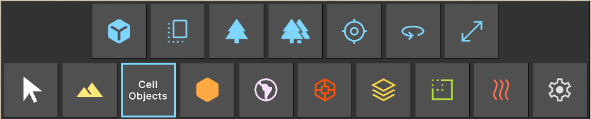
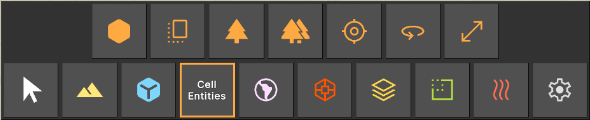
Cell Entities Tools(Paint Cell Entity, Stamp Cell Entity, Cell Entity Index, Cell Entity State, Cell Entity Position, Cell Entity Rotation, Cell Entity Scale)
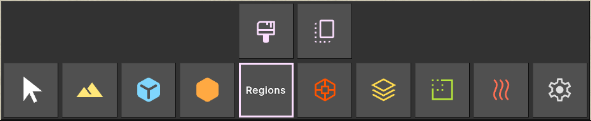
Cell Regions Tools(Paint Regions, Stamp Regions)
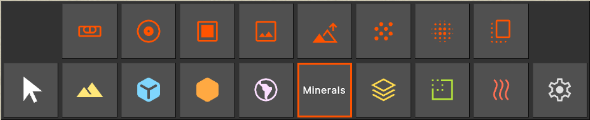
Cell Minerals Tools(Paint Minerals, Paint Mineral Index, Paint Minerals Amount, Heightmap, Deform, Noise, Smooth, Stamp)
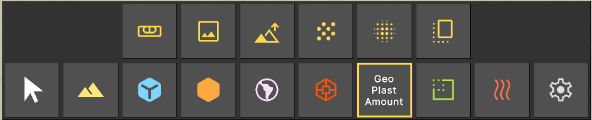
GeoPlast Amount Tools(Level, Apply Heightmap, Deform, Noise, Smooth, Stamp)
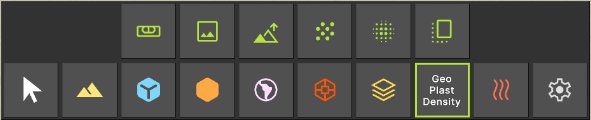
GeoPlast Density Tools(Level, Apply Heightmap, Deform, Noise, Smooth, Stamp)
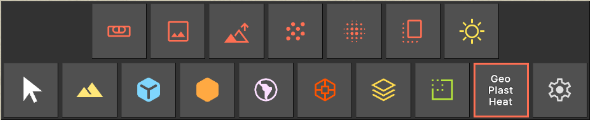
GeoPlast Heat Tools(Level, Apply Heightmap, Deform, Noise, Smooth, Stamp, Sun)
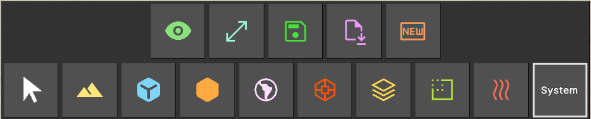
System Tools(Toggle Visibility, Resize Terrain, Save Terrain, Load Terrain, Create New)
View Modes
How to change the View Mode
To change a view mode, click on "View Mode" dropdown and select an option you want.
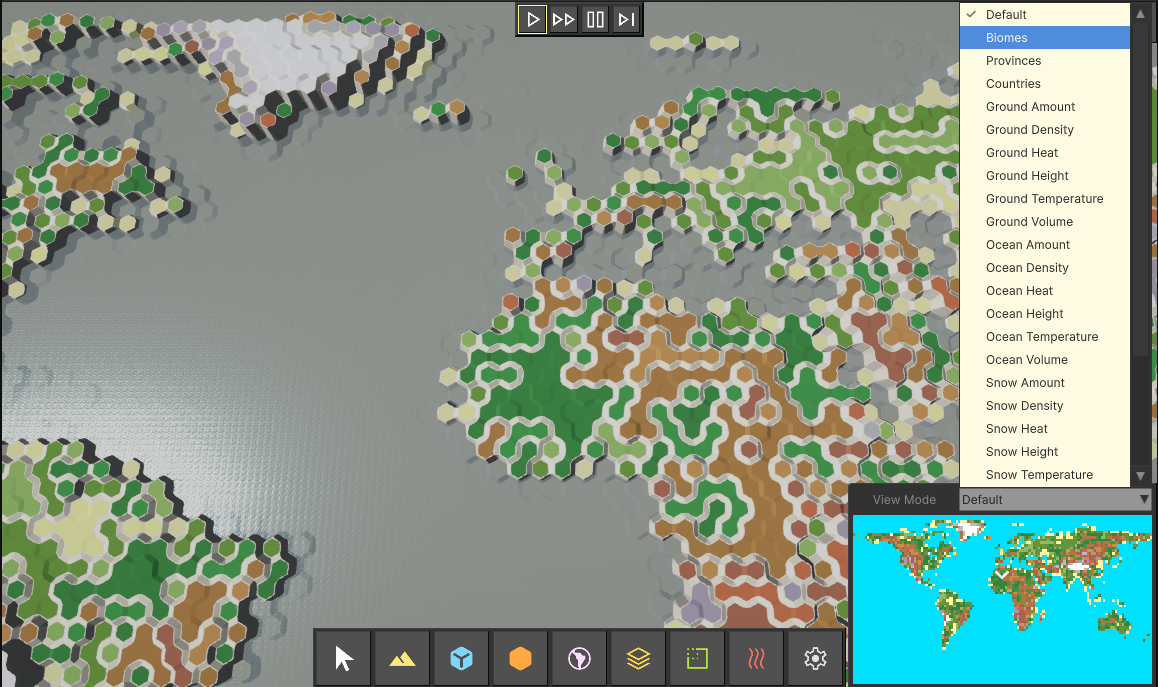
Hex Terrain supports rendering in a different view modes. View mode is a number, the value of the HexTerrainViewMode component on a Terrain Entity.
    /// <summary>
    /// Contains the current view mode of the terrain.
    /// </summary>
    public struct HexTerrainViewMode : IComponentData
    {
        /// <summary>
        /// The current view mode of the terrain.
        /// </summary>
        public int Value;
    }
Take a look at the Terrain Prefab. The Hex Terrain Authoring component has a View Mode Collection Config field.
How to Setup View Modes
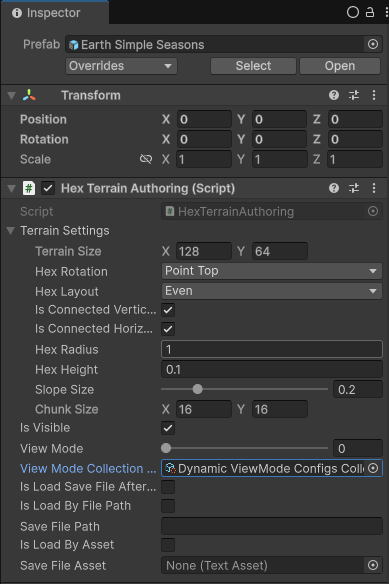
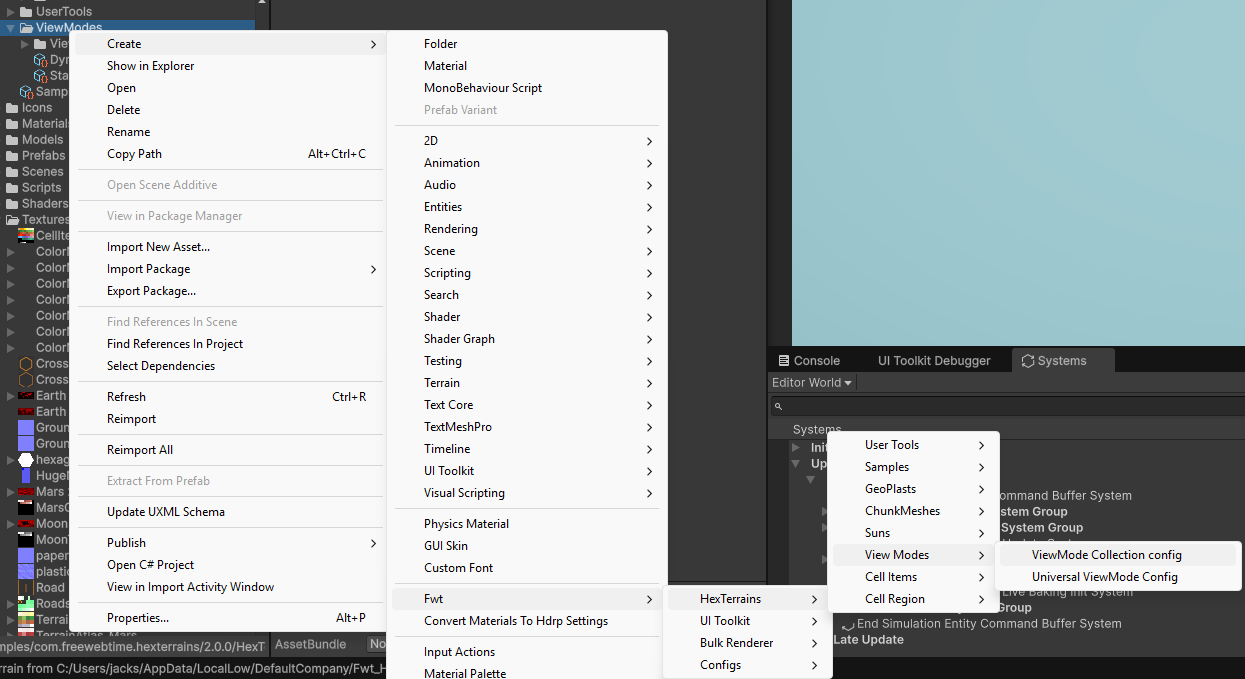
View Mode Collection Config is a scriptable object that can be created by selecting Create/Fwt/HexTerrains/View Modes/ViewMode Collection config
The asset holds a collection of View Mode configs. You may want to have different collections of View Modes for different terrains:
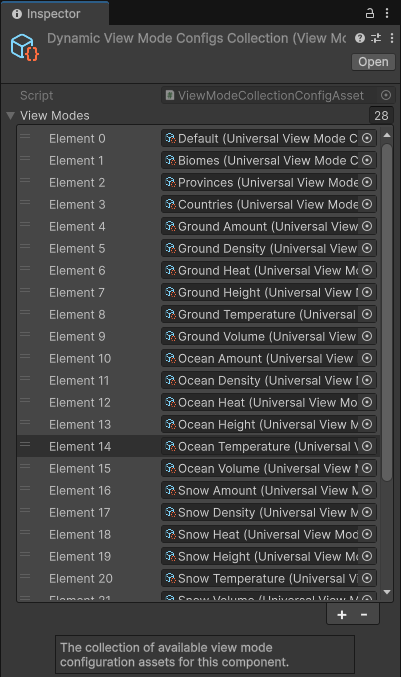
There are several built-in view modes already, but it's very easy to expand the list. Here are few examples:
Default View Mode (Regular terrain view)
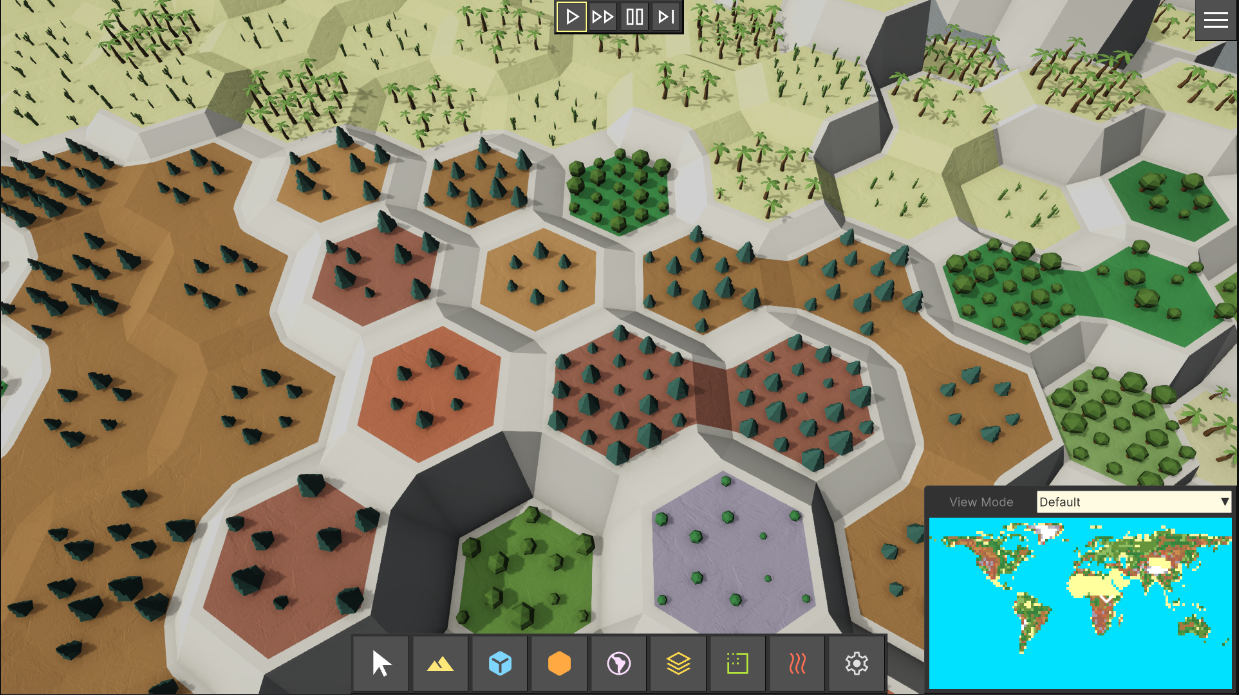
Biomes View Mode
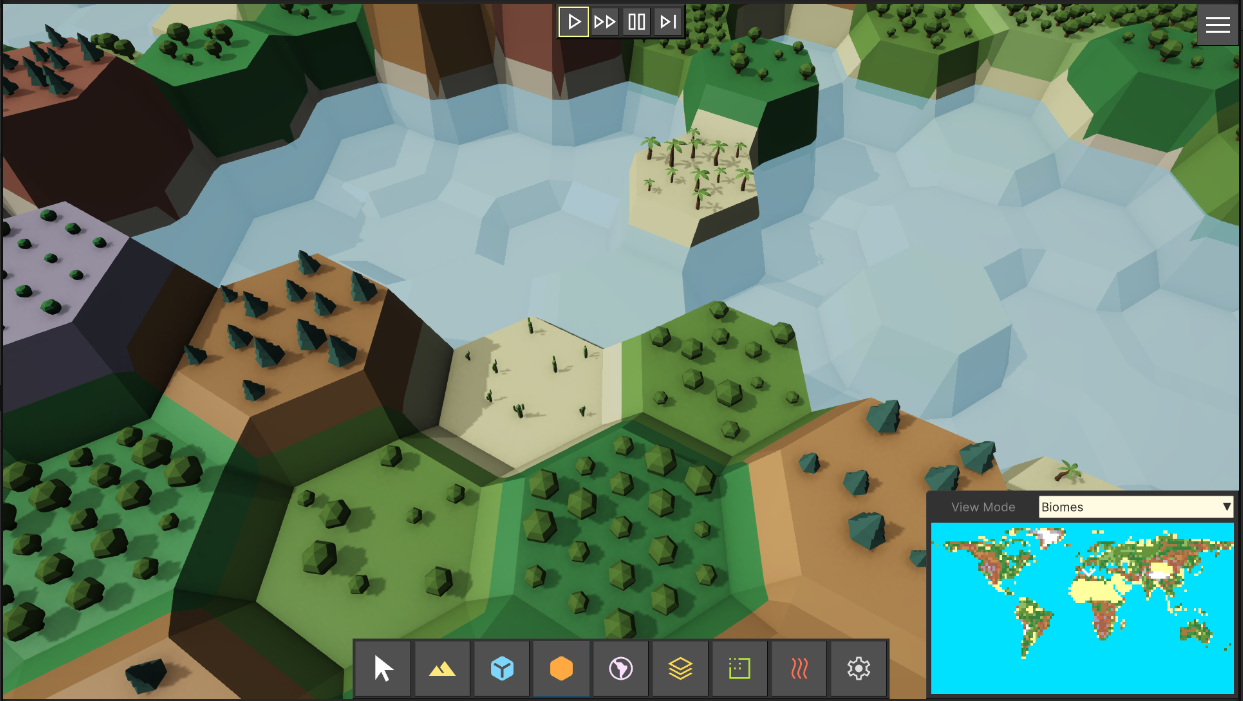
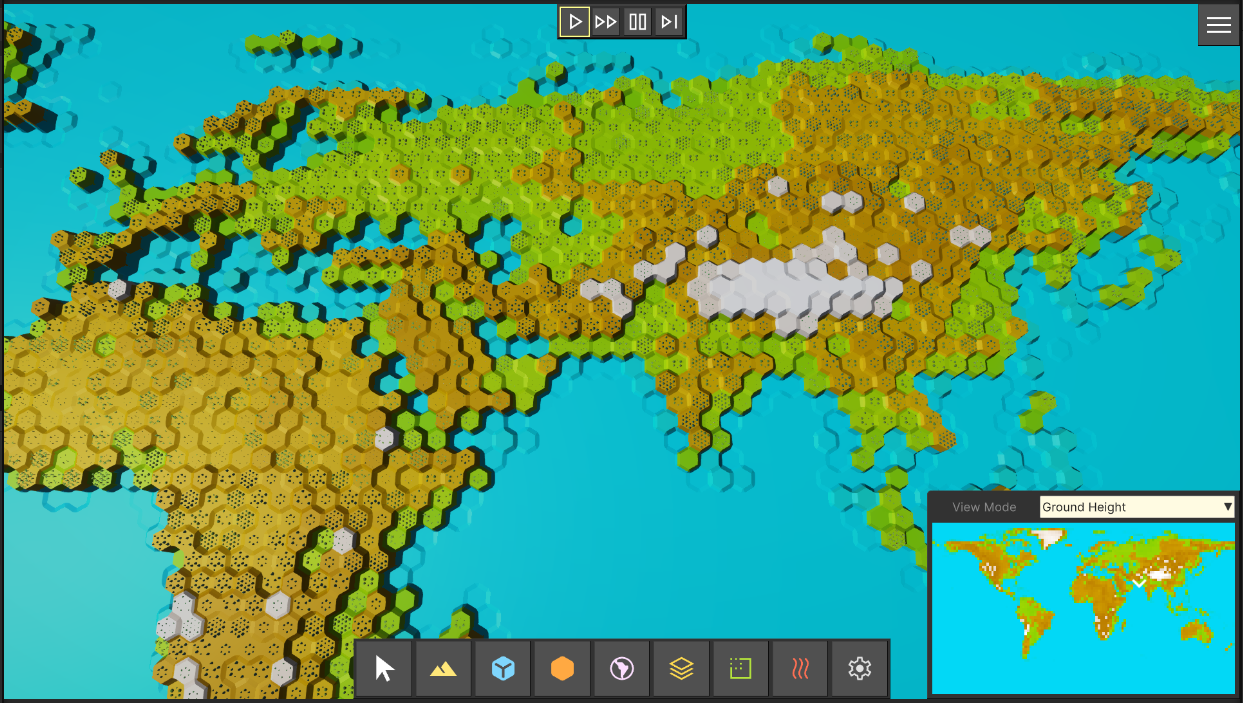
Heighmap View Mode
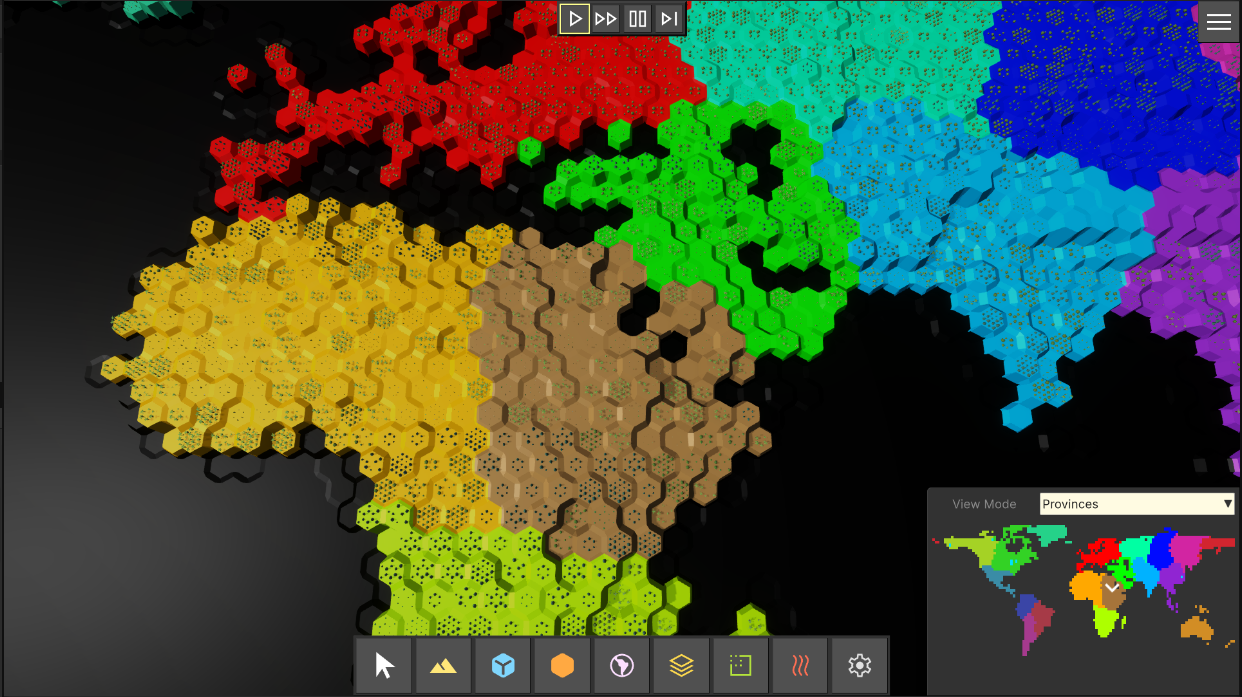
Provinces View Mode
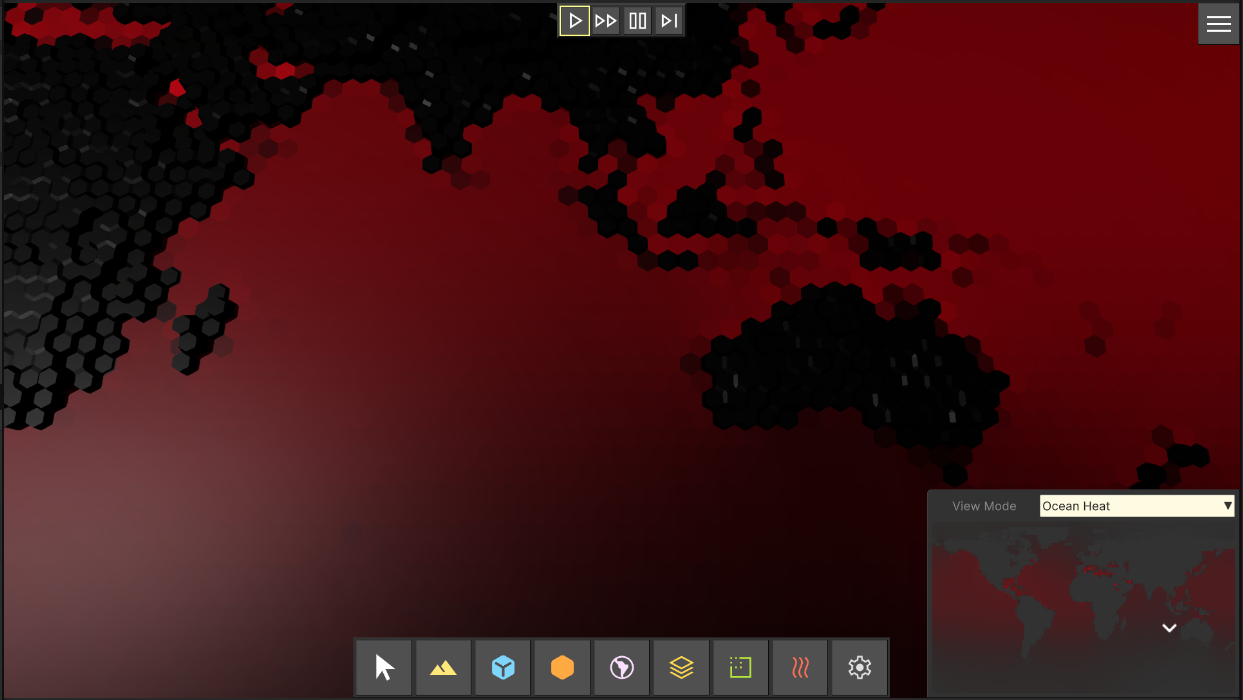
Ocean Heat View Mode
Ocean Temperature View Mode
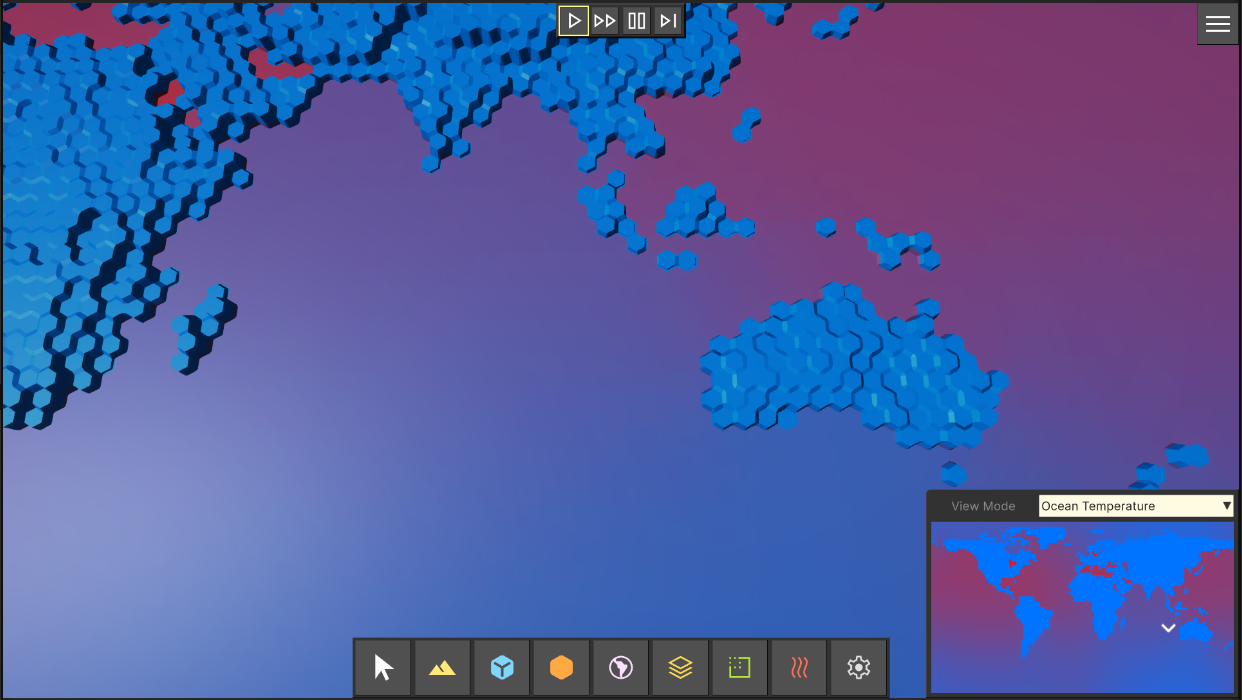
Minerals View Mode
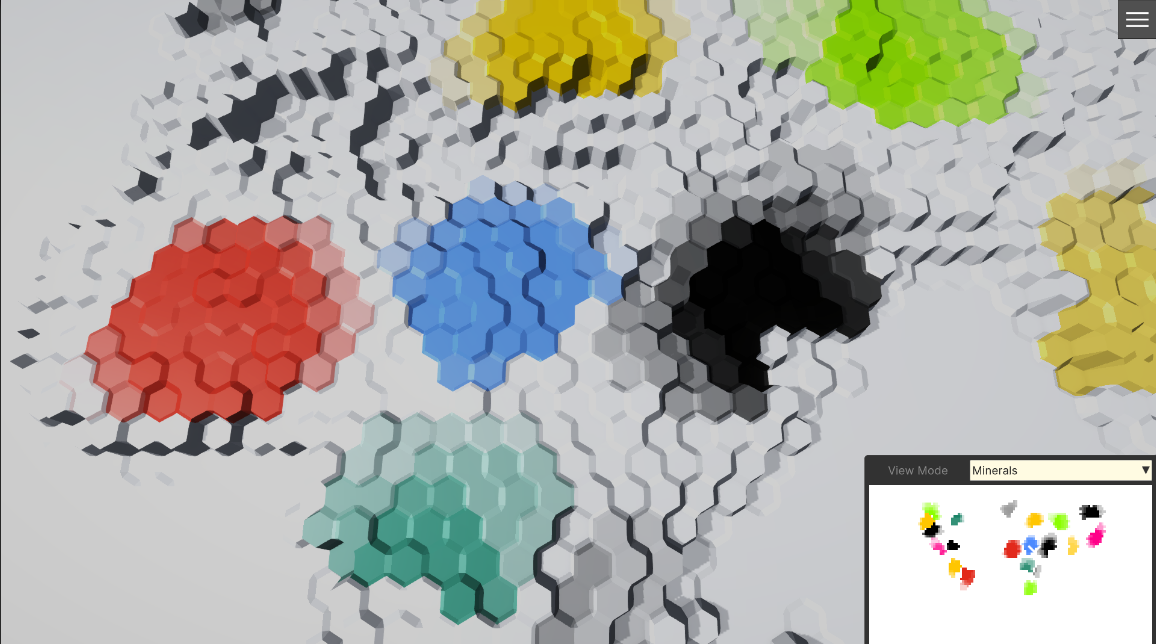
And others (see "Assets/Samples/com.freewebtime.hexterrains/2.0.0/HexTerrains_Demo/Configs/ViewModes" folder)
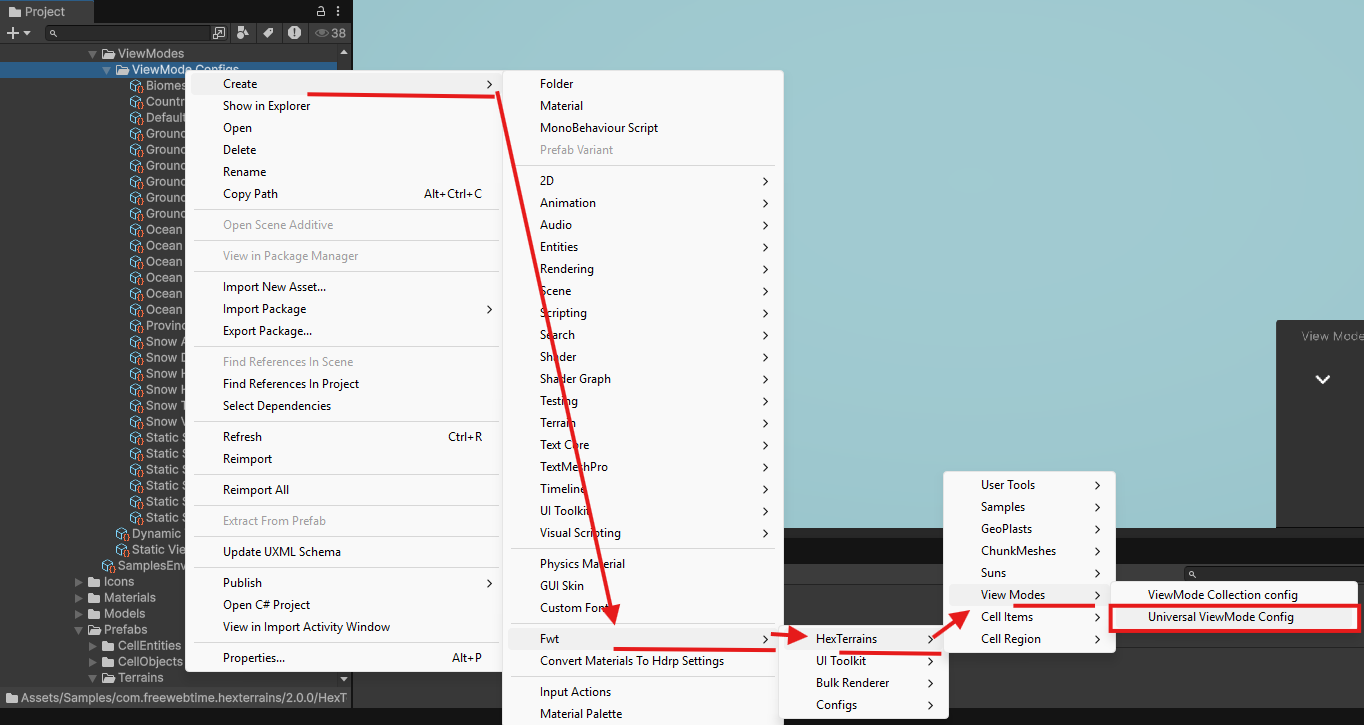
To setup a ViewMode, create a new ViewMode asset scriptable object:
Configure the ViewMode asset:
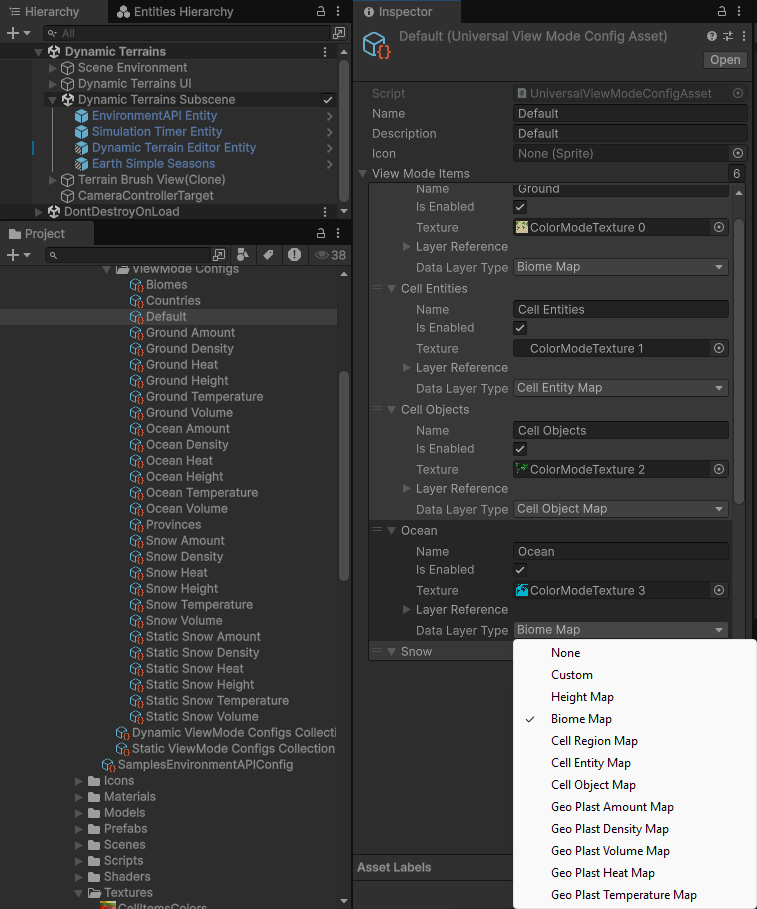
Add as much ColorMap layers as you need, and set which data should be displayed on each of them, and from which terrain layer to get the data.
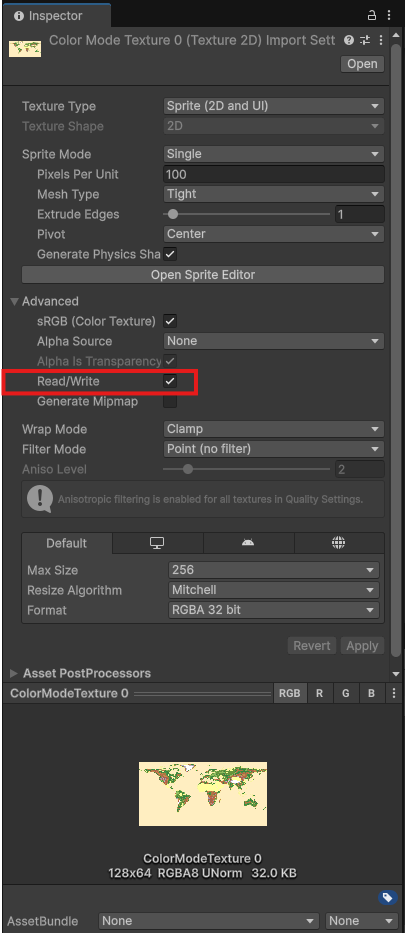
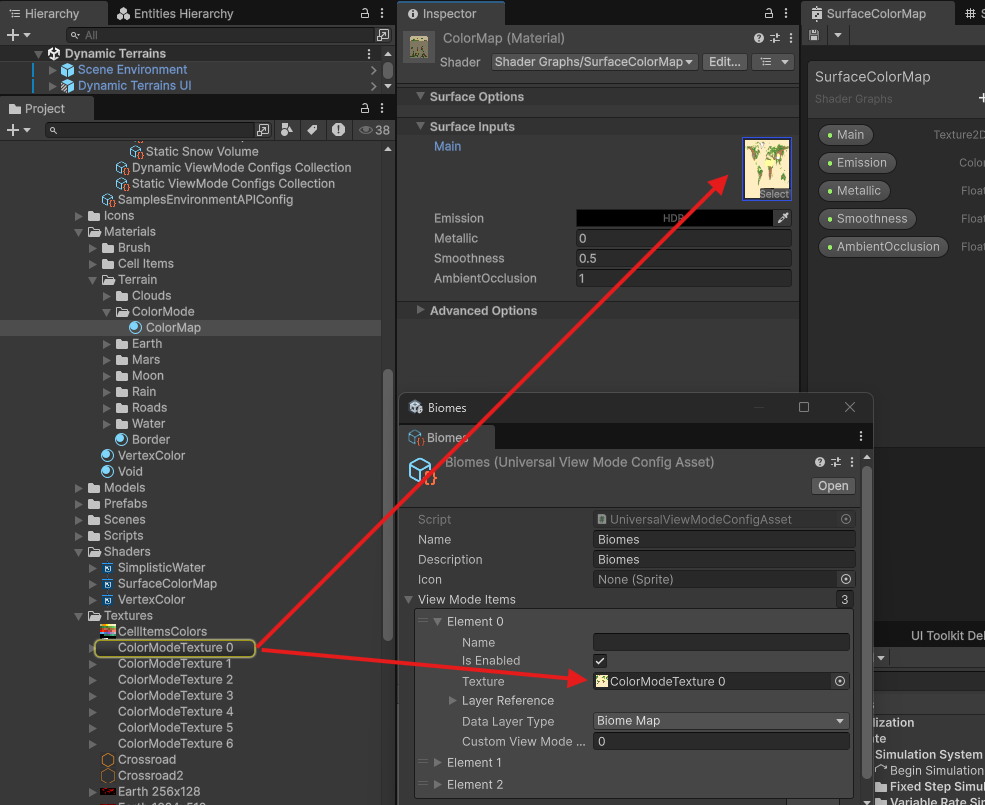
For example, there is a "Default" View Mode that fills 6 textures with color data: Ground Biome, Cell Entities, Cell Objects, Ocean Biomes, Snow Biomes, Clouds Biomes. All 6 textures are filled with colors from respective data layers and then are sent to the Minimap UI where are displayed together one on top of another. See preconfigured ViewMode configs for more details. Note that textures that are filled with colors should have Read/Write option enabled in the texture import settings:
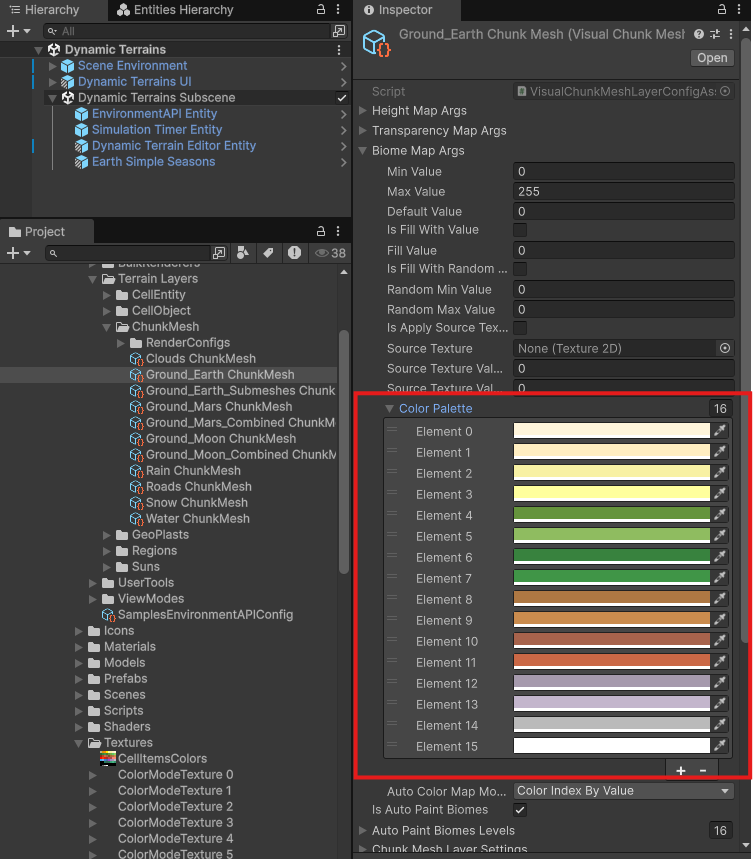
Most of data layers support a color map (they have a color map NativeArray and they fill a corresponding pixel with a color that respresents the current cell value). For example, the ChunkMesh has a BiomeMap data layer and each biome has it's own color:
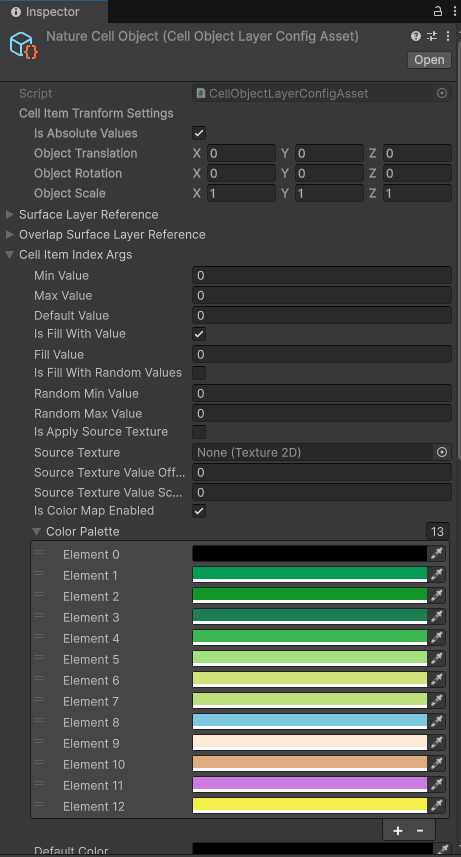
or, for example, the Color setup for each Cell Object:
Terrain materials by View Mode
Take a look at configuration of one of your ChunkMesh Layer configs. For example, the Earth Ground Chunk Mesh Layer (Assets/freewebtime/Samples/HexTerrains_Demo/Configs/Terrain Layers/ChunkMesh/Ground_Earth ChunkMesh). You can see a Render Configs list and a Default Render Config. When ViewMode is 0, the ChunkMesh layer is rendered with RenderConfigs[0], when ViewMode is 1, it uses RenderConfigs[1], and so on. If there is no Render Config at index of a View Mode, the layer is rendered with Default Render Config. This way you can setup different looks in different View Modes.
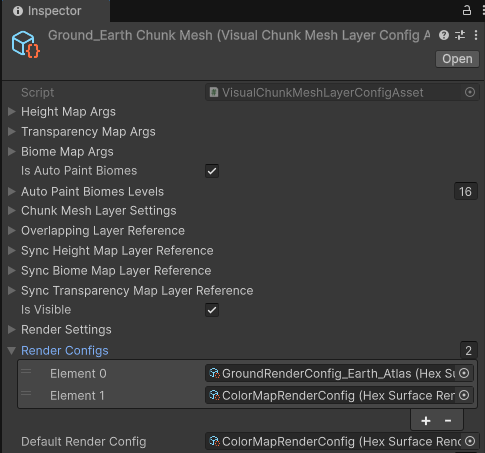
Render Config is a collection of Materials to be used for a generated Terrain Chunk Mesh (one material per submesh):
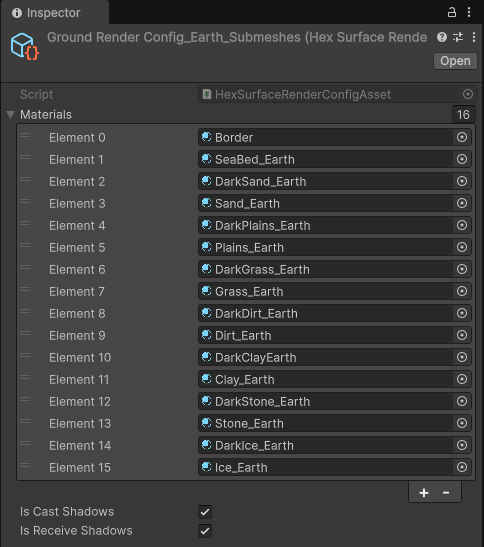
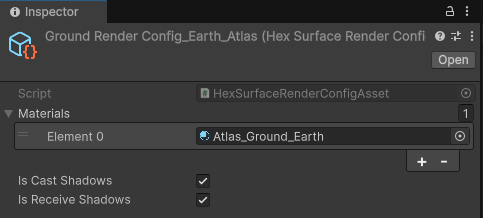
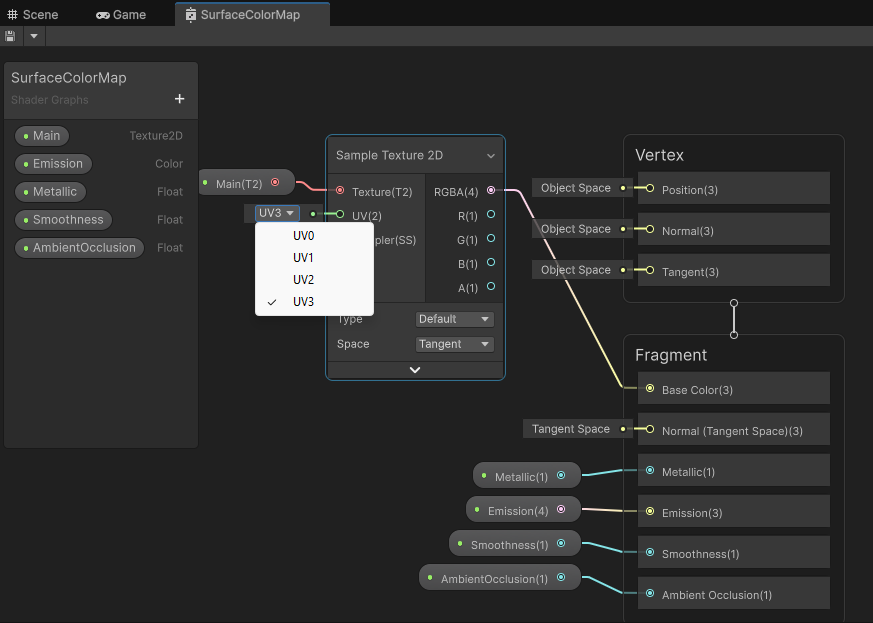
If you want to render a color map data on a terrain directly (the colors from Minimap on a terrain surface), in a terrain material for a specific ViewMode use the same texture that is used on Minimap UI, and make a material that uses UV3 (fourth UV set):
Create terrain on scene load
If you want to have a terrain loaded at scene load, just put on the subscene a terrain prefab. If you have a HexTerrainEditor prefab on the scene, set a reference to the terrain prefab in the User Tools State Machine Authoring script in the field Terrain.
You can find Terrain prefabs in the Samples folder by path "HexTerrains_Demo/Prefabs/Prefabs"
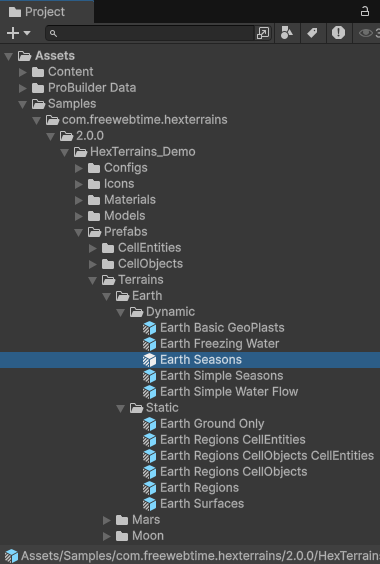
Put a prefab you want on the subscene. Now the terrain will be baked and appear on a scene in Play mode.
If you have a Terrain Editor on the subscene, set it a reference to the terrain authoring game object.
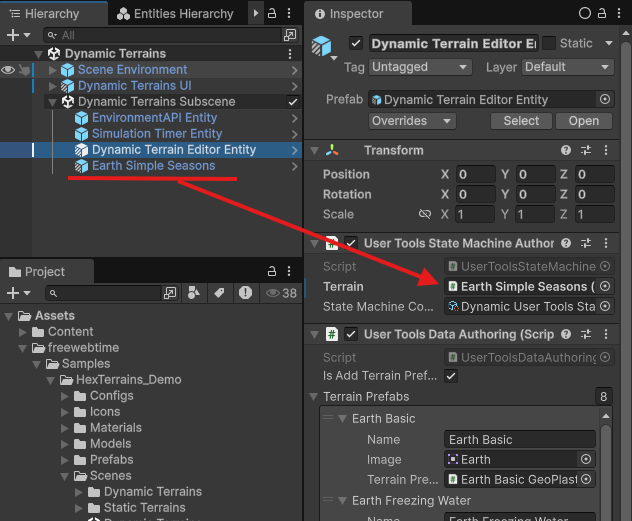
Note: if you don't set a reference to the terrain on the HexTerrainEditor, you will not be able to edit a terrain using the User Tools Panel at the bottom center of the screen.
Note: HexTerrainEditor prefab is optional. It is needed for having the User Tools Panel to be created. For your gameplay it might not be needed, so feel free to get rid of it.
How to interact with a Terrain
- To see how it's done, take a look at interface
IHexTerrainAPIand it's example implementationHexTerrainAPIclass:
/// <summary>
/// Provides a comprehensive interface for interacting with hexagonal terrain systems, enabling access to terrain
/// entities, layers, settings, and related UI and environment functionality.
/// </summary>
/// <remarks>The IHexTerrainAPI interface exposes methods and properties for managing and querying various
/// aspects of a hex terrain, including cell data, terrain layers, brush controls, visibility, and persistence. It
/// supports advanced operations such as layer manipulation, raycasting, prefab configuration, and UI screen
/// management. Implementations should ensure thread safety and proper initialization of terrain entities and layers
/// before use. This interface is intended for use in applications that require dynamic and granular control over
/// hex terrain features, such as editors or simulation tools.</remarks>
public interface IHexTerrainAPI
{
    ///...

    /// <summary>
    /// Returns a terrain layer of type <typeparamref name="TTerrainLayer"/> from the terrain layer group <typeparamref name="TTerrainLayerGroup"/> from the Terrain Entity
    /// </summary>
    /// <typeparam name="TTerrainLayer">Type of the Terrain layer to get from a layer group</typeparam>
    /// <typeparam name="TTerrainLayerGroup">Type of the Terrain Layer Group to find on the entity</typeparam>
    /// <param name="layerReference">reference data to needed layer</param>
    /// <returns>terrain layer if found and null otherwise</returns>
    TTerrainLayer GetTerrainLayer<TTerrainLayerGroup, TTerrainLayer>(HexTerrainLayerReference layerReference)
        where TTerrainLayer : HexTerrainLayer
        where TTerrainLayerGroup : HexTerrainLayerGroup
    {
        var layerGroup = GetTerrainLayer<TTerrainLayerGroup>();
        if (layerGroup != null)
        {
            return layerGroup.GetLayer<TTerrainLayer>(layerReference);
        }

        return null;
    }


    /// <summary>Returns the HeightMap value at the specified cell index from the specified ChunkMeshLayer.
    /// </summary>
    /// <typeparam name="TLayerGroup">type of HexTerrainLayerGroup entity component to get the ChunkMeshLayer from</typeparam>
    /// <typeparam name="TLayer">type of ChunkMeshLayer from the HexTerrainLayerGroup to get a cell value from</typeparam>
    /// <param name="cellIndex">cell index to get a value from</param>
    /// <param name="layerReference">reference to the layer to get a cell value from</param>
    /// <returns>value if found or null if not found</returns>
    float? GetCellHeight<TLayerGroup, TLayer>(int cellIndex, HexTerrainLayerReference layerReference)
        where TLayerGroup : HexTerrainLayerGroup, IComponentData
        where TLayer : ChunkMeshLayer;


    /// <summary>
    /// Sets the HeightMap value at the specified cell index at the specified ChunkMeshLayer.
    /// </summary>
    /// <typeparam name="TLayerGroup">type of HexTerrainLayerGroup entity component to get the ChunkMeshLayer from</typeparam>
    /// <typeparam name="TLayer">type of ChunkMeshLayer from the HexTerrainLayerGroup to set a cell value at</typeparam>
    /// <param name="cellIndex">cell index to set a value at</param>
    /// <param name="layerReference">reference to the layer to set a cell value at</param>
    /// <param name="value">value to set</param>
    /// <returns>true if value has been set, otherwise - false</returns>
    bool SetCellHeight<TLayerGroup, TLayer>(int cellIndex, HexTerrainLayerReference layerReference, float value)
        where TLayerGroup : HexTerrainLayerGroup, IComponentData
        where TLayer : ChunkMeshLayer;


    /// ...
}
In general all the interactions are done by accessing components on the Terrain Entity:
/// <summary>
/// returns a data layer from the TerrainEntity <see cref="TerrainEntity"/>
/// </summary>
/// <typeparam name="TDataLayer"></typeparam>
/// <returns></returns>
public virtual TDataLayer GetTerrainLayer<TDataLayer>() where TDataLayer : class
{
    if (!EntityManager.Exists(TerrainEntity) || !EntityManager.TryGetComponentObject<TDataLayer>(TerrainEntity, out var dataLayer))
    {
        return default;
    }
    return dataLayer;
}

/// <summary>Returns the HeightMap value at the specified cell index from the specified ChunkMeshLayer.
/// </summary>
/// <typeparam name="TLayerGroup">type of HexTerrainLayerGroup entity component to get the ChunkMeshLayer from</typeparam>
/// <typeparam name="TLayer">type of ChunkMeshLayer from the HexTerrainLayerGroup to get a cell value from</typeparam>
/// <param name="cellIndex">cell index to get a value from</param>
/// <param name="layerReference">reference to the layer to get a cell value from</param>
/// <returns>value if found or null if not found</returns>
public virtual float? GetCellHeight<TLayerGroup, TLayer>(int cellIndex, HexTerrainLayerReference layerReference)
    where TLayerGroup : HexTerrainLayerGroup, IComponentData
    where TLayer : ChunkMeshLayer
{
    var layersList = GetTerrainLayer<TLayerGroup>();
    if (layersList == null)
    {
        return default;
    }

    var terrainLayer = layersList.GetLayer<TLayer>(layerReference);
    if (terrainLayer == null)
    {
        return default;
    }

    var dataLayer = terrainLayer.HeightMap;

    if (!dataLayer.TryGetData(cellIndex, out var value))
    {
        return default;
    }

    return value;
}

/// <summary>
/// Sets the HeightMap value at the specified cell index at the specified ChunkMeshLayer.
/// </summary>
/// <typeparam name="TLayerGroup">type of HexTerrainLayerGroup entity component to get the ChunkMeshLayer from</typeparam>
/// <typeparam name="TLayer">type of ChunkMeshLayer from the HexTerrainLayerGroup to set a cell value at</typeparam>
/// <param name="cellIndex">cell index to set a value at</param>
/// <param name="layerReference">reference to the layer to set a cell value at</param>
/// <param name="value">value to set</param>
/// <returns>true if value has been set, otherwise - false</returns>
public virtual bool SetCellHeight<TLayerGroup, TLayer>(int cellIndex, HexTerrainLayerReference layerReference, float value)
    where TLayerGroup : HexTerrainLayerGroup, IComponentData
    where TLayer : ChunkMeshLayer
{
    var layersList = GetTerrainLayer<TLayerGroup>();
    if (layersList == null)
    {
        return false;
    }
    var terrainLayer = layersList.GetLayer<TLayer>(layerReference);
    if (terrainLayer == null)
    {
        return false;
    }

    var dataLayer = terrainLayer.HeightMap;
    if (dataLayer == null)
    {
        return false;
    }

    return dataLayer.TrySetData(cellIndex, value);
}